


Establishing an accurate Office 365 SPF record is vital for safeguarding email transmission in Microsoft 365 and avoiding domain spoofing. This article delves into how SPF works in Office 365 mail flow, the importance of validation for security and email deliverability, and the steps to correctly create, validate, and troubleshoot SPF TXT records. It additionally discusses DNS propagation verification, frequent configuration mistakes, and best practices to maintain your domain’s security and ensure alignment with DMARC.
How SPF works in Microsoft 365 mail flow and why validation matters
Sender Policy Framework fundamentals and RFC 7208
Sender Policy Framework is a DNS-published authorization system that tells receiving email systems which hosts are allowed to send for your domain. An SPF TXT record is evaluated against the connecting server’s IP to determine whether that server is an authorized mail source for the MAIL FROM address (also called the envelope from or header envelope). Per RFC 7208, receivers interpret the SPF record outcome (pass, fail, softfail, neutral, temperror, permerror) as an email authentication signal that influences email delivery to the Inbox, Junk Email, or Spam.
Mail flow in Microsoft 365 and MOERA
In Microsoft 365, outbound mail typically uses Microsoft-owned infrastructure. Your tenant’s Microsoft Online Email Routing Address (MOERA), such as user@contoso.onmicrosoft.com, coexists with your custom domain (for example, contoso.com). To ensure email protection and predictable delivery, the SPF record for each custom domain must designate Microsoft 365 and any other valid mail sources as permitted senders. Without correct SPF validation, messages can be flagged as SPF failures, leading to an NDR (Non-Delivery Report) or delivery to Junk Email.
Why validation matters for security and reputation
Accurate Sender Policy Framework configuration reduces email spoofing, business email compromise, and phishing attacks by making it harder for attackers to impersonate your email domains. It also supports DMARC and DKIM alignment, strengthening domain reputation signals used by Microsoft Defender for Office 365 and other filtering engines. A precise, validated SPF TXT record ensures that only an authorized mail source can send on behalf of your custom domain, while legitimate mail from valid mail sources lands in the Inbox.
Constructing a correct Office 365 SPF TXT record: include:spf.protection.outlook.com, mechanisms, qualifiers, and the 10‑lookup limit
Start with the Microsoft 365 include and cloud variations
For a standard global tenant, begin with: v=spf1 include:spf.protection.outlook.com -all. This include statement authorizes Microsoft 365 as a permitted sender for your custom domain. Tenants in sovereign clouds use variations:
- GCC/GCC High/DoD: include:spf.protection.office365.us
- 21Vianet (China): include:spf.protection.partner.outlook.cn These references allow Microsoft to update underlying IP address ranges without changes to your domain’s TXT value.
Add your other valid mail sources with mechanisms and qualifiers
If you use an on-premises email server or a bulk email service, extend the SPF record with their authorized ranges:
- ip4: or ip4: using CIDR notation
- include:<provider’s SPF domain> (verify the provider’s published SPF)
- a, mx, and ptr mechanisms are generally discouraged for precision. End with an enforcement rule:
- -all hard fail (recommended when confident you’ve listed all sources)
- ~all soft fail (interim state while you validate coverage). Your SPF TXT record should list every authorized mail source that can present your MAIL FROM address, including hybrid deployment relays or servers.adatum.com in an Exchange Server environment.
Respect the DNS lookup limit and reduce recursion
SPF processing permits a maximum DNS lookup limit of 10 includes/mechanisms that cause DNS queries. Excessive include statements or nested providers can push you over the limit and trigger permerror. Consolidate IPs into a single IP address range where possible, prefer provider-managed includes with minimal recursion, and avoid unnecessary a or mx mechanisms. For marketing.contoso.com or other subdomain senders, publish subdomain-specific SPF if their mail flow differs from contoso.com.
Pre-publish syntax validation: tools, common errors, and examples of valid vs. broken SPF records
Tools for SPF validation before go-live
Validate your SPF TXT record syntax and resolution before publishing:
- Online SPF validation and DMARC reporting service tools to expand includes and count lookups
- dig/nslookup against authoritative name servers
- PowerShell: Resolve-DnsName -Type TXT contoso.com; custom scripts to unfold includes
- Microsoft 365 admin portal checks and message trace to confirm sender alignment after publishing. These steps confirm mail source validation and help detect DNS or syntax issues early.
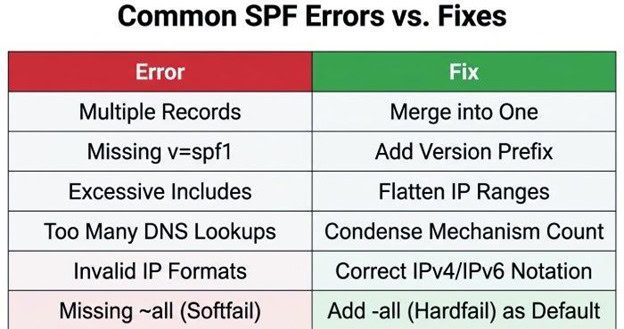
Common errors that break the Sender Policy Framework
- Multiple SPF records at the root (use one SPF TXT record only)
- Missing v=spf1 prefix or malformed TXT value quotes at the domain registrar
- Using a wildcard record for SPF (wildcards don’t apply to SPF evaluation)
- Pointing to a parked domain that lacks correct SPF, or forgetting to include third-party platforms
- Exceeding the DNS lookup limit with nested include statements
- Publishing on the wrong label (e.g., _spf.contoso.com instead of contoso.com) unless referenced by include
Examples: from valid to broken
- Valid (global): contoso.com TXT “v=spf1 include:spf.protection.outlook.com ip4:203.0.113.10 -all”
- Valid (GCC High): contoso.org TXT “v=spf1 include:spf.protection.office365.us include:_spf.bulk.example.com -all”
- Valid subdomain sender: marketing.contoso.com TXT “v=spf1 include:_spf.marketing-platform.example ~all”
- Broken (two records): Adatum publishes “v=spf1 include:spf.protection.outlook.com -all” and a second “v=spf1 ip4:198.51.100.0/24 -all”
- Broken (permerror by lookups): contoso.net chains too many include statements. Each correct example cleanly lists authorized mail sources, covers the MAIL FROM address used, and applies a clear enforcement rule.
Publishing and checking DNS propagation: TXT placement, TTL strategy, and verifying with nslookup/dig and authoritative lookups
Where to publish, what TTL to use, and who hosts the zone
Publish the SPF TXT record at the root of each sending domain and relevant subdomain. Manage it at your DNS hosting provider or DNS hosting service, which may be separate from your domain registrar. Choose a TTL that balances agility and stability: 300–900 seconds when you’re actively iterating, then increase to 1–4 hours after stabilization. Ensure proof of domain ownership and domain ownership verification are complete in Microsoft 365 so the platform associates the custom domain with your tenant.
Verifying propagation with authoritative queries and message headers
After publishing, verify DNS propagation from multiple vantage points:
- nslookup -type=txt contoso.com and dig TXT contoso.com +trace to hit authoritative servers
- Confirm the TXT value exactly matches your intended record. Send a test email from Microsoft 365 and from each third-party or on-premises path. In the recipient’s headers, review Authentication-Results to see spf=pass or the reason for SPF failures. Ensure the header envelope domain aligns with the SPF-evaluated domain and that DMARC and DKIM alignments are intact to support your DMARC policy.
Sample command patterns
- nslookup -type=txt contoso.com
- dig contoso.com txt +short
- Resolve-DnsName -Type TXT contoso.com
- dig +trace contoso.com For sovereign clouds, confirm the correct include domain (for example, spf.protection.office365.us for GCC/GCC High/Department of Defense (DoD) tenants, or spf.protection.partner.outlook.cn for 21Vianet).
Troubleshooting and maintenance: interpreting Authentication-Results, handling hybrid/third‑party senders, and staying DMARC‑aligned
Reading headers, NDRs, and adjusting enforcement
When messages fail, Authentication-Results may show spf=fail with the evaluated domain and connecting IP. NDR (Non-Delivery Report) diagnostics or Spam folder placement often cite Sender Policy Framework failures or DMARC alignment issues. If you’re moving from ~all soft fail to -all hard fail, monitor for unexpected rejects and add any missed permitted sender, such as a bulk email service or an external email address relay. Keep -all once your inventory of valid mail sources is complete.
Hybrid, Exchange Server, and third-party senders
In a hybrid deployment with Exchange Server, add IP4 mechanisms for your public IP address ranges or publish an include statement that references a single SPF host (for example, _spf.contoso.com) you control. For servers.adatum.com or partner platforms, coordinate their documentation to include domains and verify they don’t push you over the DNS lookup limit. If an on-premises email server rewrites the MAIL FROM address, ensure the SPF record for that domain authorizes that egress IP. For subdomain senders, define subdomain-specific SPF where mail flow differs from the parent.
Stay aligned with DKIM and DMARC for stronger protection
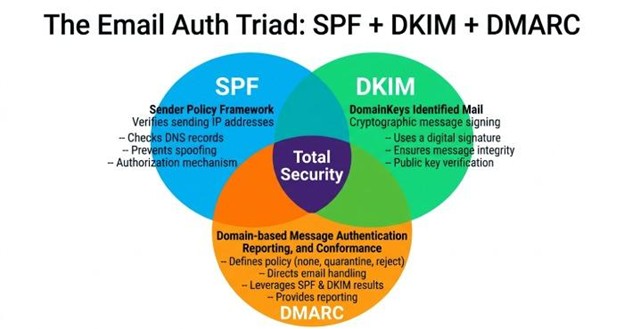
SPF alone doesn’t prevent all email spoofing; combine it with DKIM signing in Microsoft 365 and enforce a DMARC policy (p=quarantine or p=reject) once alignment is verified. Use a DMARC reporting service to observe which sources pass or fail alignment over time and to confirm domain reputation improvements. Regularly review changes announced by spf.protection.outlook.com and related endpoints, and keep an eye on Microsoft Defender for Office 365 insights in the admin portal. Revalidate after infrastructure changes, update TTL temporarily during transitions, and periodically test from onmicrosoft.com addresses to ensure clarity in Authentication-Results.
By maintaining a precise, validated SPF TXT record in DNS for every custom domain, continuously auditing authorized mail sources, and coordinating DKIM and DMARC, you preserve strong email authentication, protect against email spoofing, and keep Microsoft 365 mail flowing reliably to recipients’ Inboxes.
